
Make room on your Mac.
See which files take up space, review what you no longer need, and choose what to delete.
Free · macOS 13 or later
Files are scanned on your Mac. You confirm every deletion.
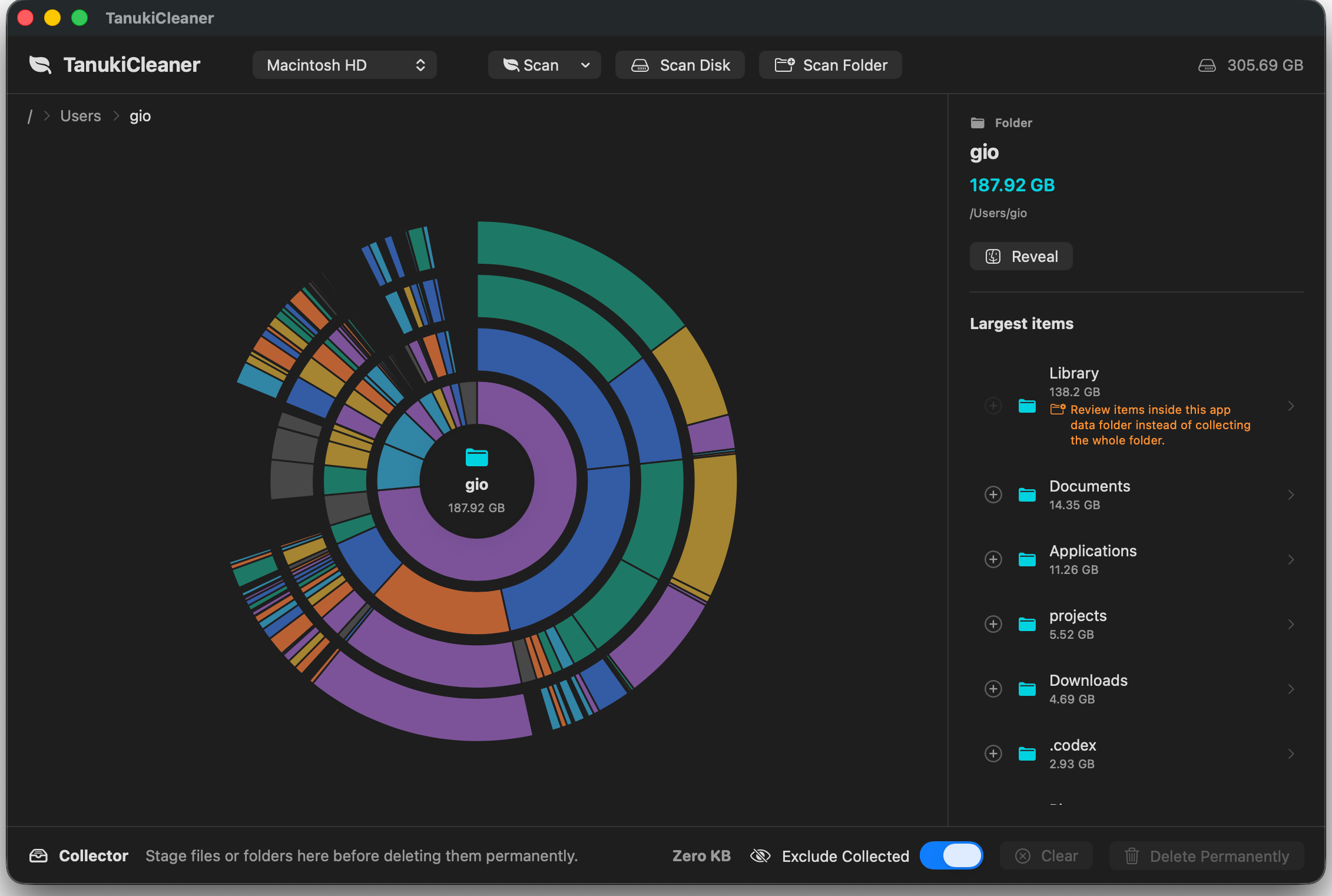
Find it. Review it. Make room.
Start with the files you recognize: old downloads, videos, and disk images.
See what takes up space
Scan a folder or disk. Larger areas on the map mean larger files and folders.
Review your choices
Reveal unfamiliar items in Finder. Add files you no longer need to the Collector for review.
Choose what to delete
The map can hide collected items so you can see what remains. Nothing is deleted until you confirm.
Deletion is permanent. Keep a backup of files you may need.
Your files. Your decision.
You stay in control from the first scan to the final confirmation.
Review before deleting
Nothing is deleted automatically. You confirm permanent deletion.
Keep familiar files close
Reveal items in Finder before adding them to the Collector.
Built-in guardrails
Protected system paths are blocked. Risky app data needs extra confirmation.
Scanned on your Mac
File contents and storage maps are not uploaded for analysis.
A few things to know.
Quick answers to common questions about Tanuki Cleaner.
Is Tanuki Cleaner free?
Yes. Tanuki Cleaner is free.
Which Macs can use it?
Tanuki Cleaner supports Apple silicon and Intel Macs running macOS 13 or later.
Can I undo a deletion?
No. Deletion is permanent and does not move files to the Trash. Review the files in your Collector and keep a backup of anything you may need before confirming.
Does it clean System Data?
Tanuki labels hidden storage that macOS does not expose as ordinary files. This can include protected data, snapshots, and system metadata. It does not mean that all of this space can be deleted; Tanuki does not delete snapshots or force macOS to reclaim purgeable space.
Do I need Full Disk Access?
You can scan ordinary folders without it. Protected macOS locations require Full Disk Access. Giving this permission does not upload your files or change the local scanning process.
See what is taking up space.
A clearer view of your Mac is a good place to start.
Get Tanuki for MacFree · macOS 13 or later